
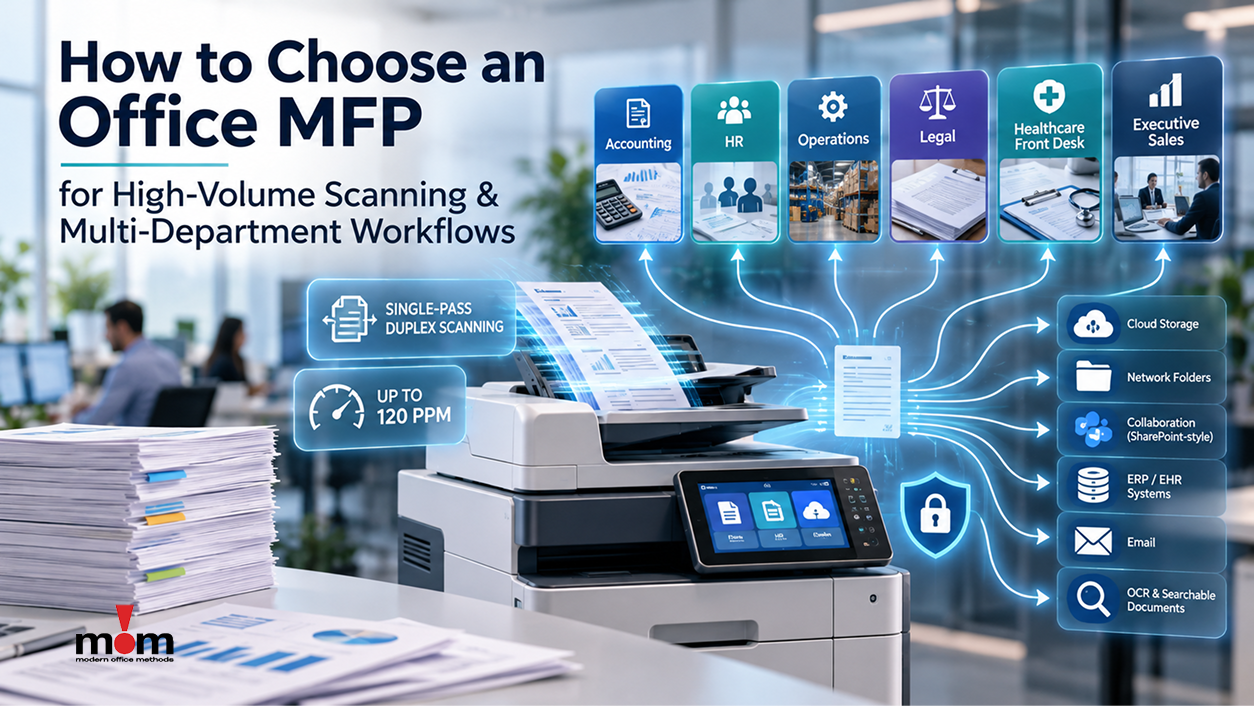
Walk past the copier in most offices around 4:30 on the last day of the month, and you’ll see the problem. Accounting feeds a stack of invoices through the feeder, 50 pages at a time. HR is waiting behind them with a new-hire packet. Someone from the warehouse gives up and plans to come back later.
Most of the time, the device isn’t broken. It was chosen for printing in an office that now mostly scans. The multifunction printer (MFP) was picked off a spec sheet, and nobody mapped how documents actually move from paper into the systems where people work.
That gap matters more every year. Invoices, contracts, patient forms, delivery tickets, and HR records still start on paper somewhere. They need to land in your ERP, your EHR, SharePoint, a shared drive, or a line-of-business application. If the MFP at the center of that process can’t keep pace, every department waits.
Below is how we recommend evaluating an MFP when scanning volume is high and several departments share the equipment.
What to look for at a glance
An MFP built for heavy scanning and shared use should have:
- A single-pass duplex document feeder that captures both sides of a page at once
- Scan speeds, measured in images per minute (ipm), that match your biggest batches and not only your average day
- A large feeder that handles mixed sizes, thin receipts and heavier stock without misfeeds
- On-device OCR and one-touch workflows that send each scan to the right folder, application, or person
- User authentication and department tracking, so scans stay secure, and every page is accounted for
- Integration with the software you already run, such as Microsoft 365, SharePoint, cloud storage, ERP, or EHR
- A service partner who monitors devices remotely and has technicians close by
The sections below explain how to evaluate each one.
Step 1: Map the workflow before you compare devices
Buyers often start with brand and print speed. Start with the documents instead.
For each department, work through four questions:
- What gets scanned? Invoices, signed contracts, driver’s licenses, long reports, oversized drawings?
- How much, and when? A steady flow through the day, or large batches at month-end, payroll, or shift change?
- Where does it go? A network folder, email, SharePoint, an accounts payable platform, a patient chart?
- Who should see it? Financial, medical, HR, and legal records each carry their own privacy requirements.
In a typical mid-sized organization, the answers look something like this:
| Accounting / AP | Invoices, receipts, statements | Month-end scanning surges | High ipm, large feeder, OCR, ERP routing |
|---|---|---|---|
| HR | New-hire packets, I-9s, benefits forms | Confidential documents left on the glass or in shared folders | Secure login, scan to a restricted folder |
| Operations / Warehouse | Delivery tickets, packing slips, BOLs | Mixed paper sizes and wrinkled originals | Durable feeder, misfeed detection, one-touch buttons |
| Legal / Contracts | Signed agreements, long multi-page files | Searchability and version control | Searchable PDF, accurate OCR, document management integration |
| Healthcare / Front desk | Intake forms, insurance cards, IDs | Speed at check-in, HIPAA exposure | Card scanning, EHR integration, audit trail |
| Executive / Sales | Proposals, printed presentations | Color quality and finishing | Color output, stapling and booklet finishing |
Once the workflow is written down, choosing the right devices, and the right number of them, gets much easier.
Step 2: Focus on the scanning specs that matter
Spec sheets lead with print speed in pages per minute. In a scan-heavy office, that number tells you very little. These specs tell you more.
Single-pass duplex scanning
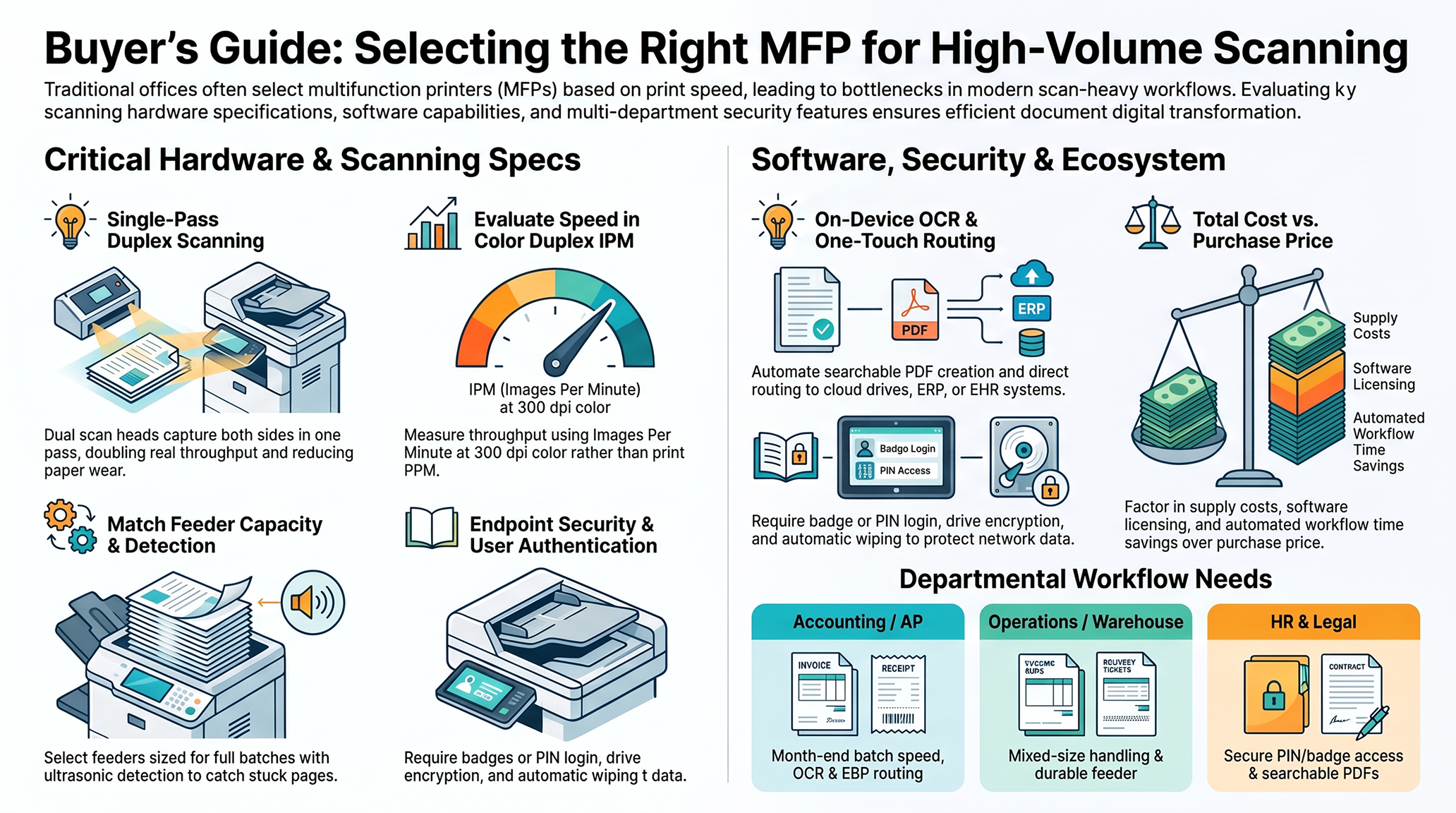
Older and entry-level feeders scan the front of a page, flip it, and then scan the back. A single-pass duplex automatic document feeder (DADF) has two scan heads and captures both sides on one trip through the feeder. On double-sided originals, that can nearly double real throughput, and the pages take less wear. For high-volume scanning, we treat it as a requirement.
Images per minute (ipm), simplex and duplex
Scan speed is listed in images per minute, and a double-sided page counts as two images. Compare duplex ipm across models, and ask what happens to that speed in color and at higher resolution. A feeder that runs fast at 200 dpi in black and white can slow down at 300 dpi color, which is a common setting for OCR and records retention.
Feeder capacity and paper handling
If your AP team scans 150-page batches, a 100-sheet feeder means someone has to stand at the machine and reload it. Match feeder capacity to your typical batch size, and look for:
- Mixed-size handling, so letter, legal, and receipts can go through in one stack.
- Ultrasonic double-feed detection, which catches two pages stuck together before one quietly goes missing from the file
- A wide paper-weight range that covers thin carbonless forms as well as card stock
On-device OCR and file formats
An image of a page is hard to find later. Confirm the MFP can produce searchable PDFs, and ideally Word or Excel files, right at the panel. Check compression options as well. High-compression PDF keeps large color scans small enough to email and store.
Step 3: Size the device to your real volume
Every MFP lists a maximum duty cycle, the most pages it can physically handle in a month. Treat that figure as a stress test. Instead, plan around the manufacturer’s recommended monthly volume and size for your busiest weeks.
After decades of servicing fleets, we’ve seen the same pattern many times. A device that regularly runs near the top of its recommended range generates more service calls, wears out parts faster, and spends more time down. Moving up one speed class, or adding a second device, usually costs less than the repairs.
A print-and-scan assessment is the most reliable way to size correctly. Usage data pulled from your current fleet shows which devices are overworked, which sit idle, and where volume should shift.
Step 4: Design for several departments sharing equipment
When several teams share a device, the questions change. Speed still matters, but so does how well the device handles many different users and jobs.
Centralized vs. distributed
- Centralized: one or two production-class MFPs in a shared area. Cost per page is lower, and management is simpler, but one failure affects everyone.
- Distributed: smaller departmental devices close to where the work happens. People walk and wait less, but more devices need maintenance.
Most organizations end up with a hybrid. A high-volume device handles heavy scanning and printing, and smaller departmental units cover convenience and confidential work.
One-touch workflow buttons
Current MFPs let you add custom buttons to the touchscreen, such as “Scan Invoice to AP,” “Scan HR Packet,” or “Scan Delivery Ticket.” Each button stores the destination, file type, resolution, and naming rule. Employees press one button instead of setting five options, reducing errors and speeding scanning in every department.
Authentication and cost tracking
Badge or PIN login protects sensitive scans, loads each user’s own buttons and destinations, and tracks usage by department for budgeting or chargeback. Secure print release, where a job prints only after the user signs in at the device, also reduces waste from printouts nobody picks up.
Step 5: Evaluate the workflow software as closely as the hardware
The hardware captures the page. The software decides where it goes next. Each major manufacturer offers a workflow and print management platform, including Canon uniFLOW, Ricoh Smart Integration, and HP Workpath apps.
When you evaluate this software, ask whether it can:
- Send scans directly to Microsoft 365, SharePoint, OneDrive, Google Drive, or Box.
- Connect to your ERP, accounting software, EHR, or document management system.
- Apply naming rules, metadata, or barcode recognition so files are indexed automatically.
- Manage print and scan policies across a mixed fleet from one console.
- Support remote and hybrid employees as well as people in the building.
The goal is simple. An employee scans once, and the document arrives where it belongs. Nobody downloads it from email, renames it, and drags it into another system.
Step 6: Treat the MFP as a security endpoint
An MFP has a hard drive, an operating system, and access to your email and file servers. It needs the same security attention as a laptop or server. Look for:
- Secure boot and firmware validation that block tampering
- Encrypted storage, automatic data overwrite, and a certified drive wipe at the end of the lease
- User authentication and role-based access to scan destinations
- Encrypted scan to email and scan to folder
- Audit logs that can feed your security monitoring tools
In healthcare, finance, legal, and government, these features help meet compliance requirements.
Step 7: Make service and uptime part of the decision
A fast scanner waiting on a part is still down. Before you sign, ask:
- Does the provider monitor devices remotely and catch problems before users notice?
- Are toner and supplies shipped automatically based on actual levels?
- What response times are guaranteed, and are the technicians local and factory-trained?
- Is there one point of contact for the device, the software, and the network it connects to?
The last question comes up more often every year. Plenty of “printer problems” turn out to be network, authentication, or cloud connection issues. They get fixed fastest when one partner supports both sides.
Step 8: Compare total cost, not purchase price
Purchase price is a small share of what an MFP costs over its life. A fair comparison includes:
- Lease or purchase cost over the full term
- Cost per copy (CPC) for black and white and color, including service and supplies
- Licensing for workflow and print management software
- Productivity lost when a device is down or overloaded.
- Staff time saved by automated scanning workflows
Over a five-year term, a more capable device with automated routing often costs less than a cheaper model that leaves employees handling every scan by hand.
Common mistakes to avoid
- Buying for print speed when most of the volume is scanning
- Sizing to average volume and falling behind at month-end
- Overlooking the feeder and ending up with a model that can’t scan both sides in one pass
- Leaving software integration until after installation
- Treating the MFP as a standalone box instead of a networked device that needs security
- Choosing on price without asking who responds when the device goes down
Questions to ask any MFP provider
Take these to your next vendor meeting:
- Will you analyze our current fleet usage before recommending devices?
- What is the duplex scan speed in color at 300 dpi?
- What workflow software is included, and what does it integrate with?
- How do you handle authentication, secure release, and department tracking?
- Which security features are turned on by default, and how is data wiped at the end of the term?
- Do you monitor devices remotely and automatically replenish supplies?
- Who supports the network and cloud connections the device depends on?
- Can you recommend more than one manufacturer, or only one?
Why organizations choose Modern Office Methods
Modern Office Methods (MOM) has helped businesses keep documents moving since 1957. We’re a second-generation, family-owned company serving Ohio, Pennsylvania, Northern Kentucky, and Southeast Indiana, and we approach every MFP decision the same way. We look at the workflow first and the device second.
We recommend the device that fits. MOM represents Canon, HP, and Ricoh. That lets us match each department to the hardware and workflow software that suits it, rather than putting every team on one product line.
We start with your data. Our assessment looks at how your current fleet is used, including volume, peak periods, idle devices, and bottlenecks, so we size the new fleet correctly from the start.
We configure the workflow. Our team builds the one-touch scan buttons, the routing into Microsoft 365 and SharePoint, and the connections to your line-of-business systems, all set up around how each department works.
We support the network behind the device. Our managed IT division, Optimized IT, and our cybersecurity team at Obviam support the network, cloud, and security layers your MFPs depend on. You call one partner instead of sorting out which vendor owns the problem.
We keep you running. Remote monitoring, automatic supply replenishment and local, factory-trained technicians mean fewer surprises and faster repairs.
For your team, that means shorter lines at the copier and documents that reach the right system the first time.
Frequently asked questions
What is the best type of printer for high-volume scanning? A multifunction printer with a single-pass duplex document feeder, high duplex ipm, a large feeder, and built-in OCR. For very heavy scanning concentrated in one department, a production-class MFP or a dedicated production scanner paired with workflow software is often the better fit.
What does ipm mean on a copier or MFP? IPM stands for images per minute. A single-sided page is one image and a double-sided page is two, so duplex IPM is the most accurate measure of real scanning speed.
How many MFPs does a multi-department office need? It depends on volume, floor layout, and document sensitivity. Many organizations use one high-volume shared device for heavy scanning and printing, plus smaller departmental devices for convenience and confidential work. A fleet assessment is the most reliable way to decide.
Can an office MFP scan directly to SharePoint or Microsoft 365? Yes. Most current Canon, HP, and Ricoh MFPs can scan directly to Microsoft 365, SharePoint, and OneDrive, either natively or through workflow software, often with one-touch buttons and automatic file naming.
Is it better to lease or buy an MFP? Leasing spreads the cost over the term and makes upgrades easier. Buying can make sense for low-volume devices you plan to keep long term. Most businesses compare total cost, including service, supplies, and software, rather than purchase price alone.
Ready to clear the line at your copier?
If your team regularly waits on the copier, look at the workflow behind it. Schedule a no-cost print and workflow assessment with Modern Office Methods. We’ll show you where documents slow down and how the right MFP fleet can speed them up.